Lipi · Writing
An editor that knows it is editing LaTeX
Lipi’s editor is GtkSourceView, with LaTeX and BibTeX highlighting, and it knows enough about a document to complete what you are typing, show you the maths you are writing, and read a table back into a grid.
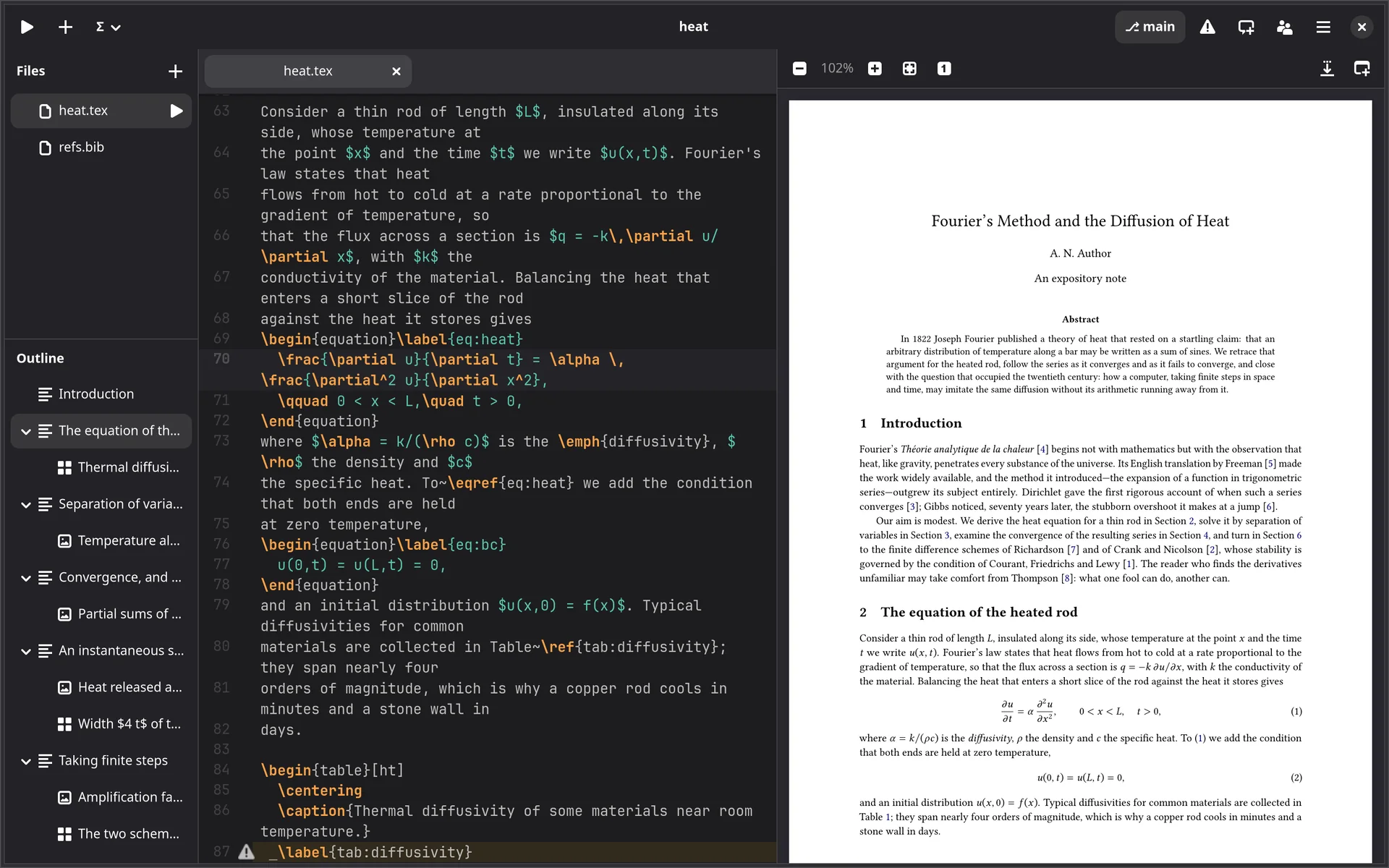
\input file, follows the cursor, and takes
you to a heading with a click.Rest on the maths to see it
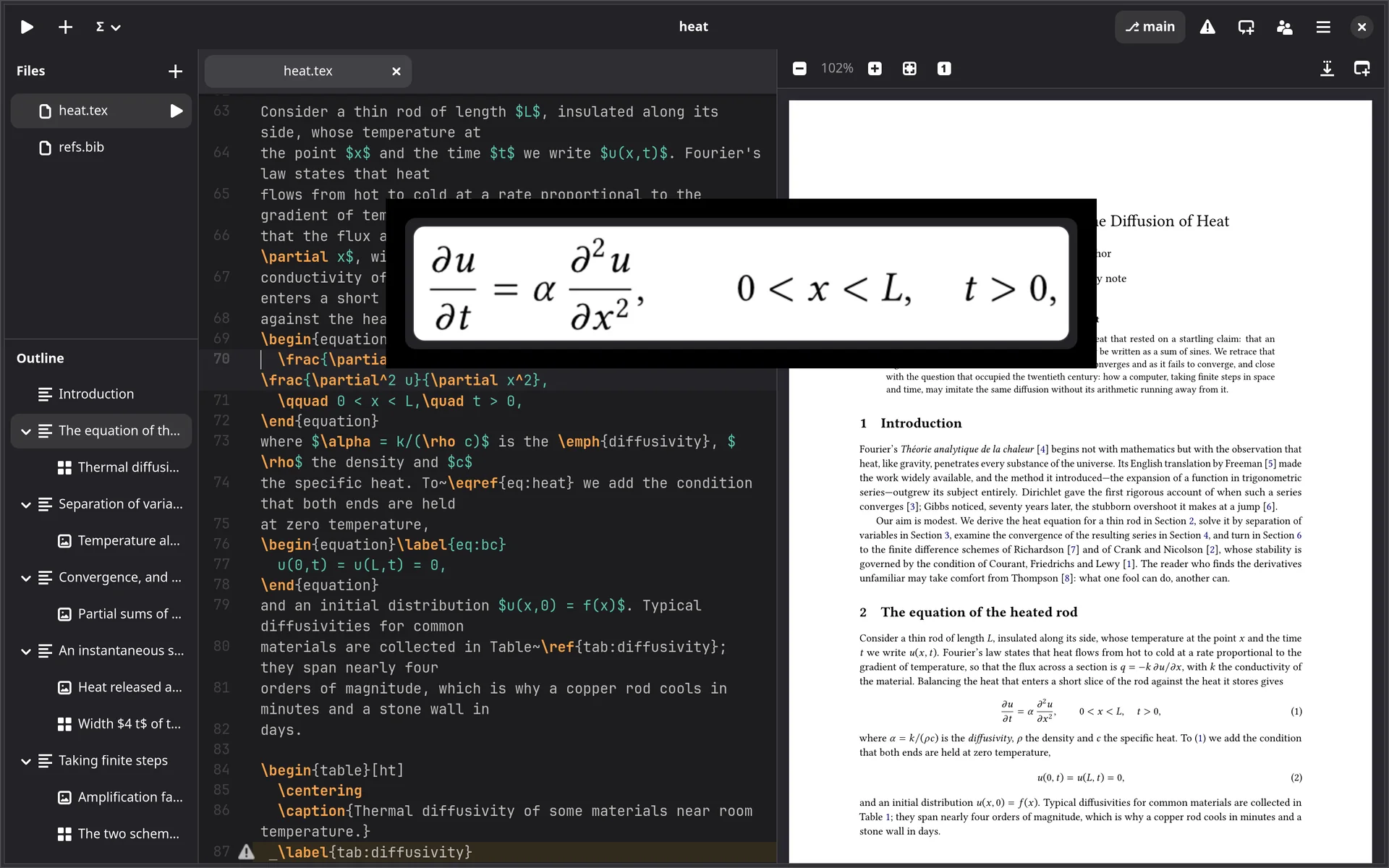
Rest the pointer on $…$, \[…\], an align or any
other maths and Lipi shows it typeset, with the document’s own preamble, so your
macros come out as they will in the PDF. Rest on \includegraphics{…} and
you see the picture.
- Go to definition with F12 or Ctrl+click, and back again with Alt+Left or the mouse’s side buttons.
- Comments fold: runs of comment lines and
commentenvironments show as their first line until you open them.
Completion that writes the boring half
The standard environments complete as whole \begin … \end blocks with
Tab stops, and everyday commands as snippets. With
texlab installed, labels, citations
and package commands complete too.
- Citation keys come with their authors, year and title, and typing an author’s name or a word of the title finds the key. Each one shows whether its reference has been checked against the published record.
- Braces close themselves. Enter after an
\itemstarts the next; on an empty one it ends the list. - Ctrl+. closes the environment you are in.
- Snippets of your own: a trigger word or a
\command, with Tab stops and$SELECTION, on a key of its own if you like.
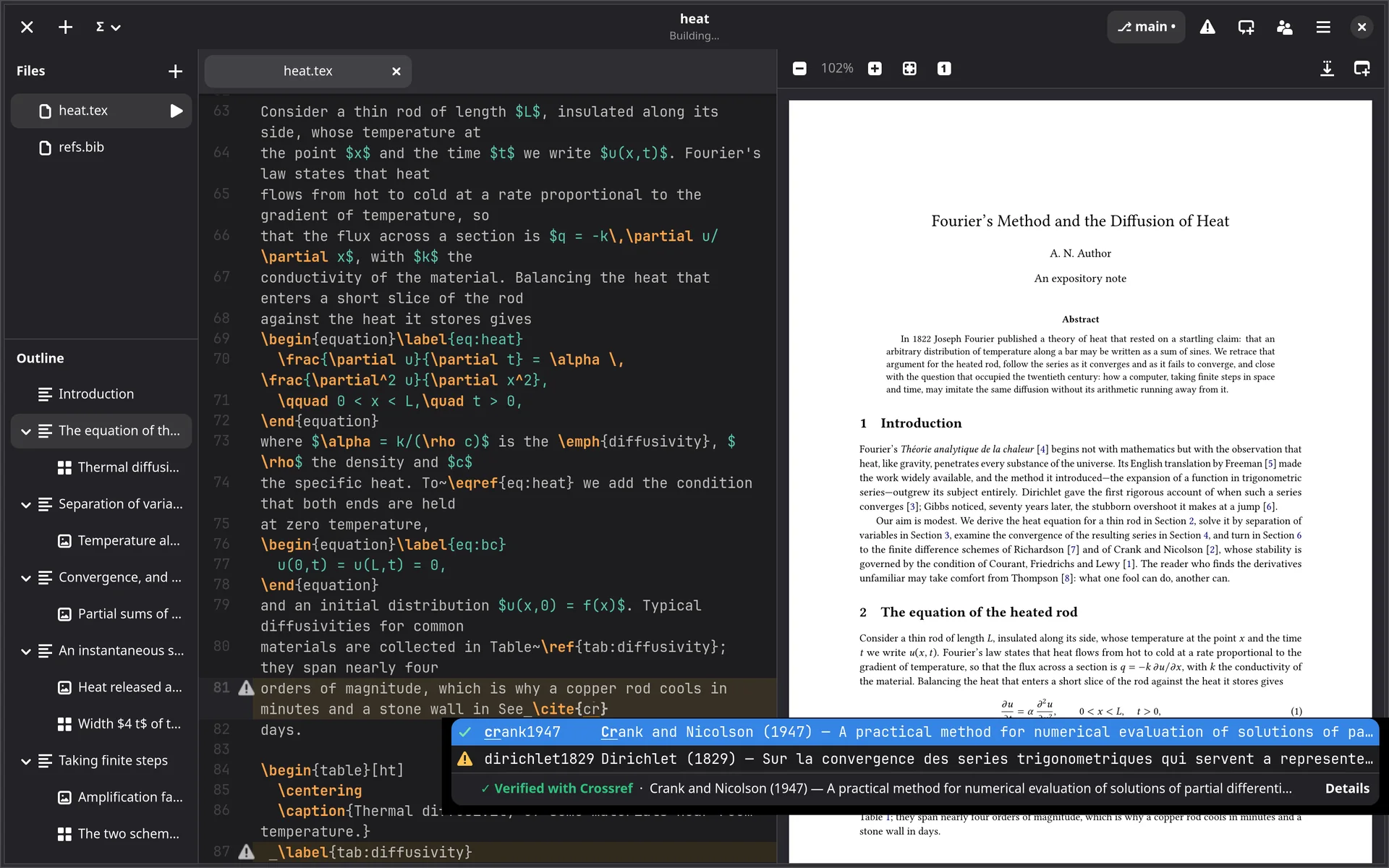
\cite{cr: each key with its authors and title, a tick for a
reference that agrees with Crossref, a warning for one that does not.Tables, as a grid
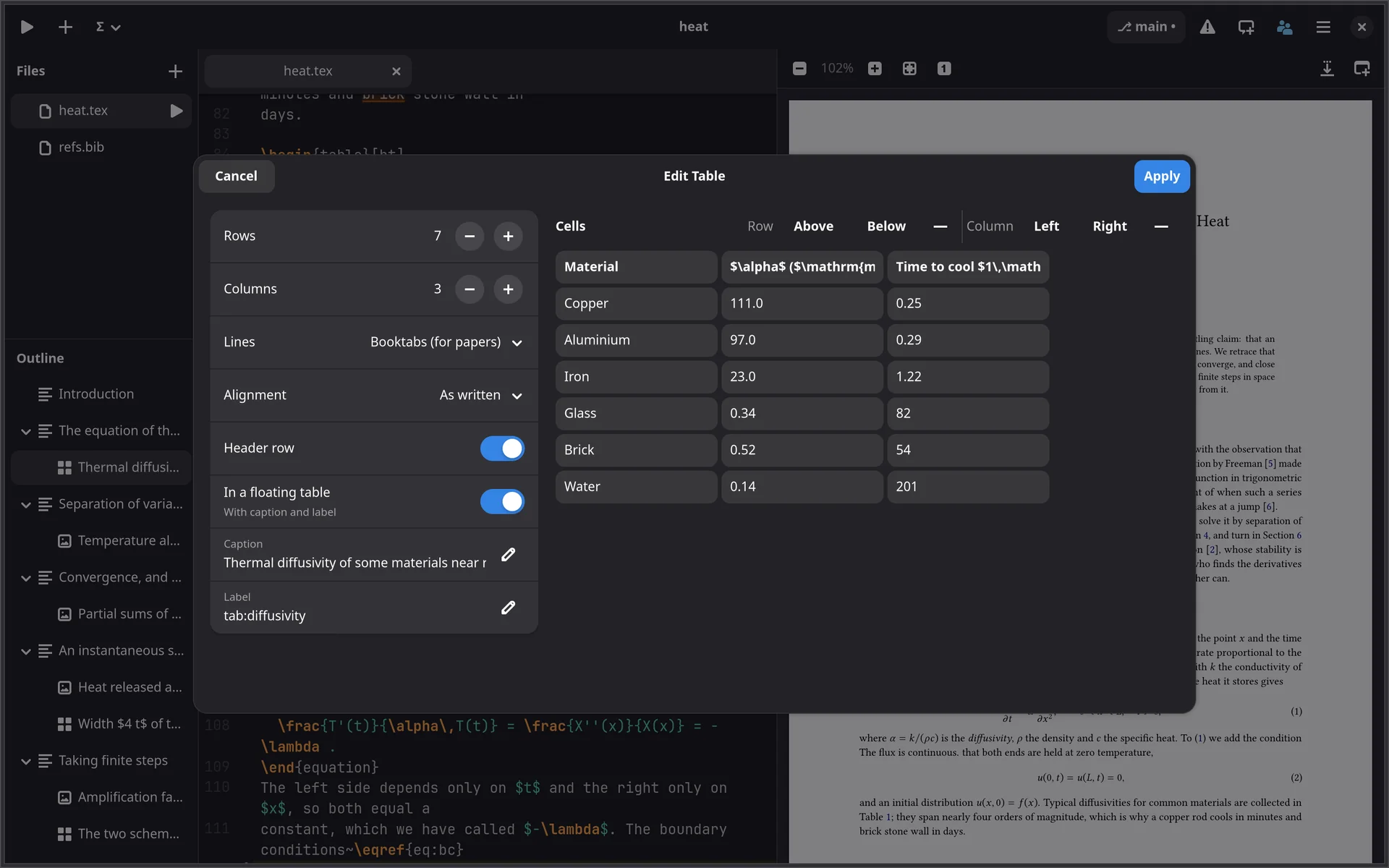
Insert a table from a grid, or paste one straight from a spreadsheet with Ctrl+Shift+V. With the cursor in a table already in the source, Edit Table… reads it back into the grid: cells, lines, header, caption and label.
- Rows and columns can be inserted, deleted and lined up straight from the menu, without opening the grid.
- What the grid cannot show is kept:
\cmidrule,\multicolumn,p{3cm}columns, comments. - Figures come in from an image file or by dropping one on the editor, and symbols from a palette. Packages they need are added to the preamble.
Starting a project
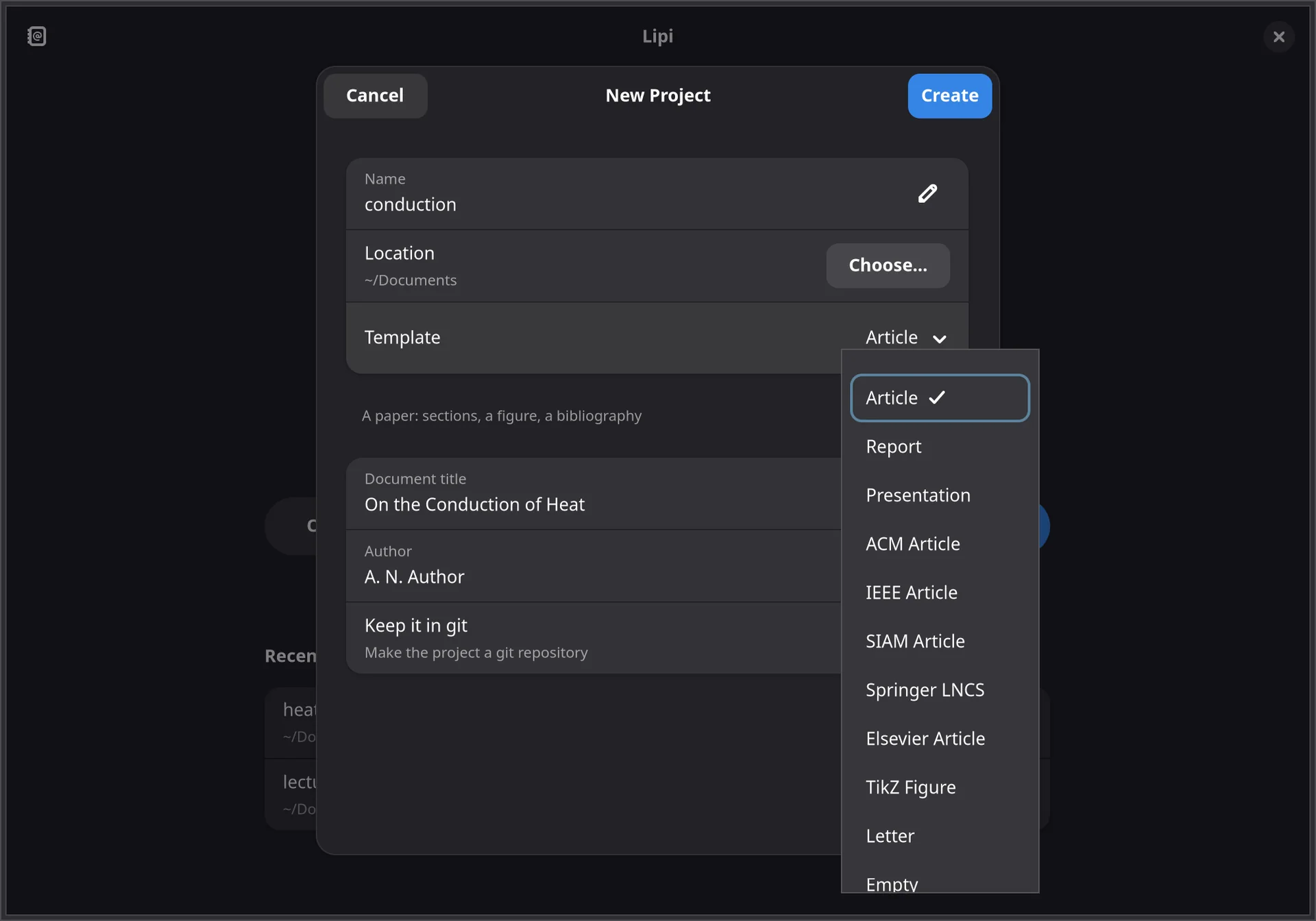
New projects come from templates: article, report, slides, ACM, IEEE, SIAM, Springer LNCS, Elsevier, a standalone TikZ figure and a letter, each optionally kept in git from the start. New files come from templates too: a section, a chapter, a bibliography, a TikZ picture, a table, a package.
The start screen lists your recent projects, and opens, clones or joins another.
And the rest of a day’s editing
Tabs
In the order you put them, each file coming back where it was scrolled to. They follow a renamed file, and the project reopens with them.
Spell checking of prose
Not commands, maths, labels, keys or file names.
Find and replace
With case, whole-word and regex options, and across the whole project with Ctrl+Shift+F.
latexindent
Ctrl+Shift+B formats the file or the selection, with the project’s own settings. Only lines that change are touched.
Shortcuts you can change
Every one, in Preferences → Shortcuts. One taken from another action says so.
Preferences
Font, line spacing, colour scheme, light or dark, wrapping, right margin, an overview map, folding, and more.
Editing, completion, environment snippets, spell check and find and replace are free in every tier. latexindent, the table and figure editors and snippets of your own come with a licence.