Sulekha · Reading
Made for what LaTeX produces
Most viewers treat a PDF as a picture. Sulekha treats it as the output of a build: a file that changes, that points at itself, and that you read beside the source it came from.
Rebuild, and it is already on screen
Reading mode never holds the file open. It takes a copy of the bytes when the document opens and then follows the file: when a rebuild settles, the new version appears on the page you were reading. There is no lock, no stale copy and no reopening.
- A file from the command line, a file manager or a browser opens for reading, since none of them means “edit this”. Ctrl+Shift+M switches to annotating when you did mean to write on it.
- Each document gets its own window, so a tiling compositor can put two side by side. A second launch joins the running program instead of starting another.
# one terminal
latexmk -pvc -pdf paper.tex

# the other, once; it follows the file from then on
sulekha paper.pdf

# open a paper at the proof you are checking
sulekha --page 14 --find "Lemma 3" paper.pdf
Cross-references that show, not just jump
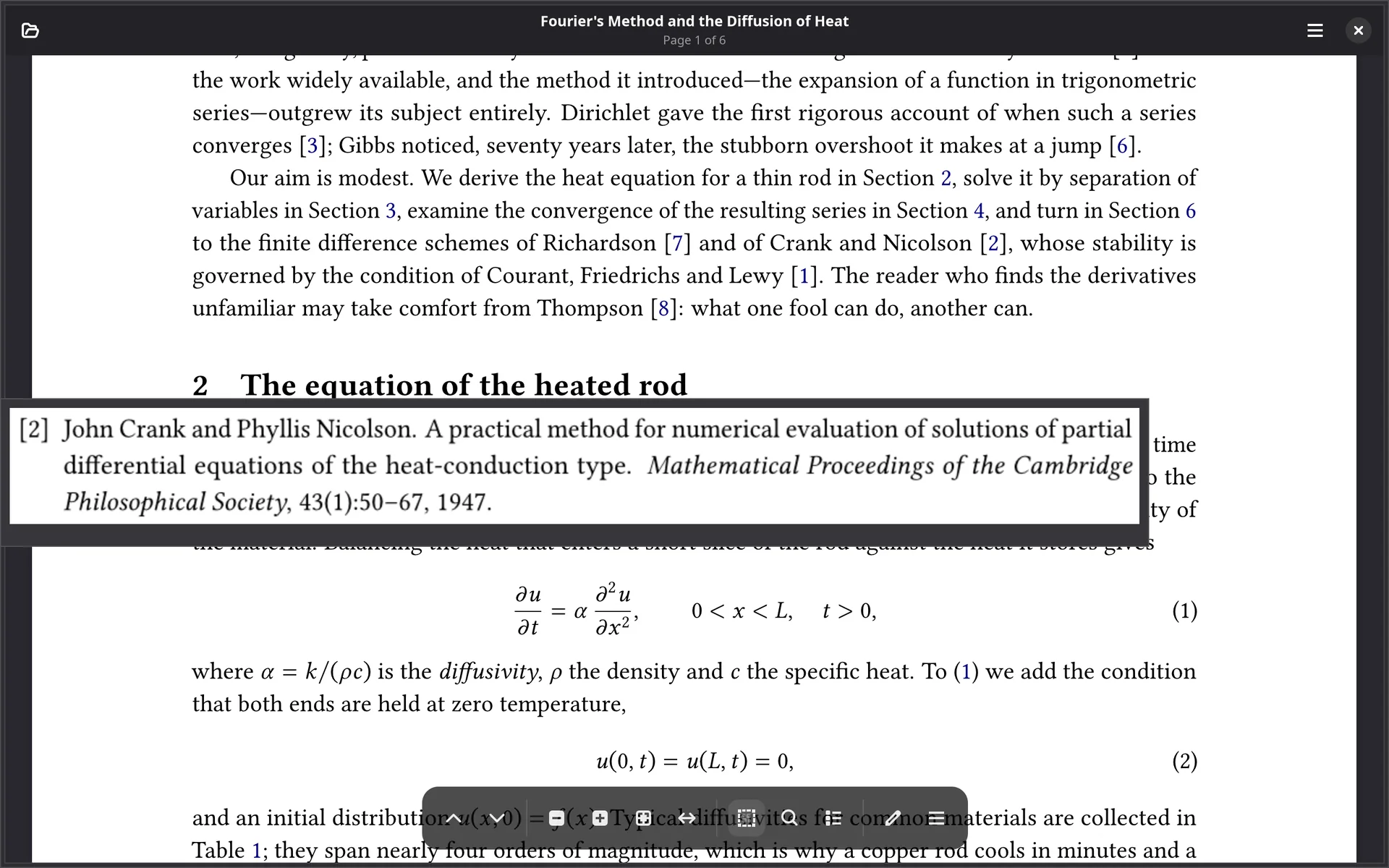
Rest the pointer on a citation and the bibliography entry appears where you are. Rest it on a reference to a figure and you get the figure with its caption. Following the link is optional, which is most of the work of reading a paper with references in it.
- The item itself, not a slice of the page. Entries are found by their hanging indent, captions by the gap after them.
- It waits a third of a second, so crossing a line of citations on the way somewhere else fires nothing.
- Clicking turns to the target; addresses open in your browser. Only
http,httpsandmailtoare followed, neverjavascript:orfile:.
Find, contents and thumbnails
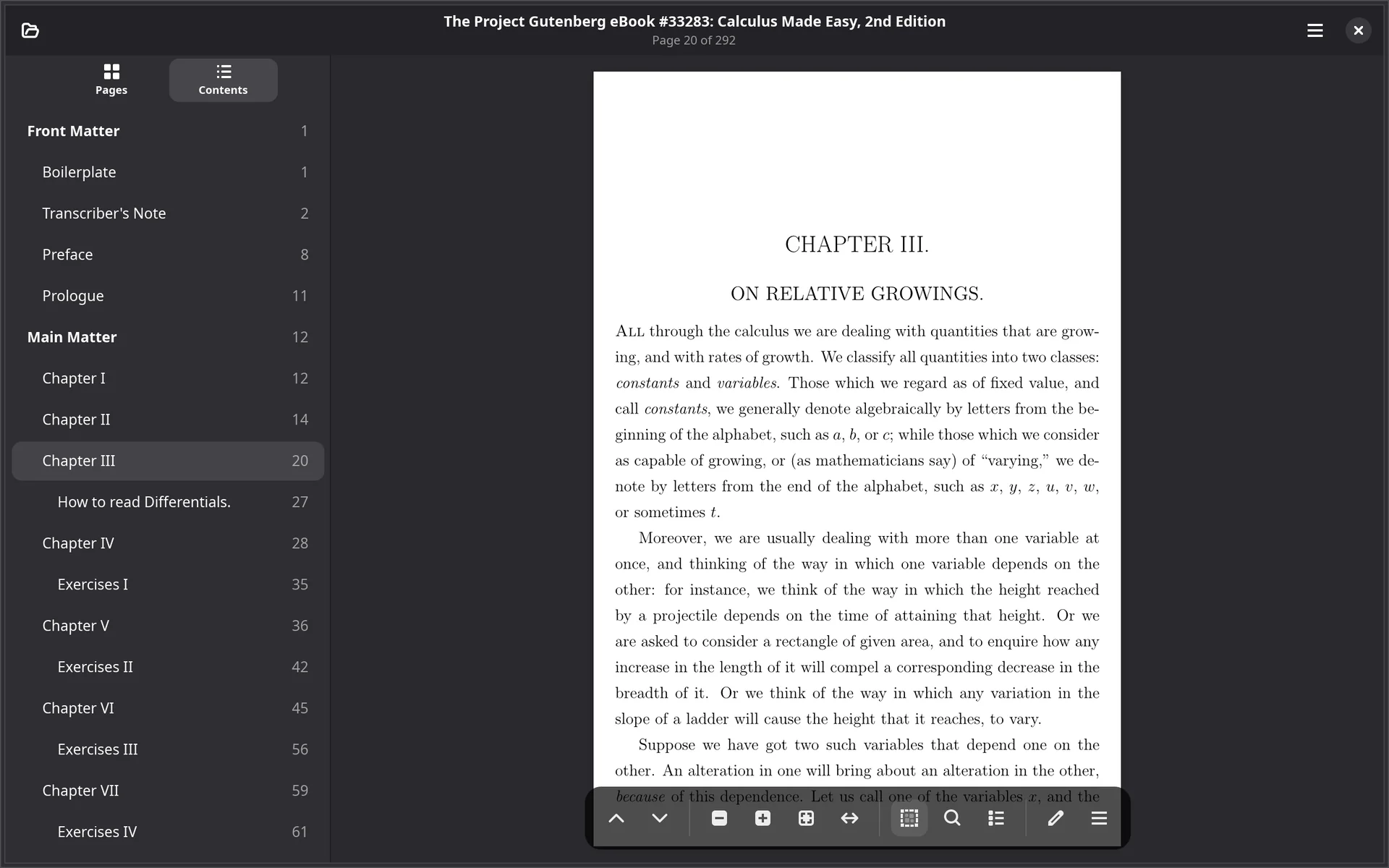
Ctrl+F searches the whole document, reporting matches page by page as it goes, so results appear straight away in a long book. It ignores case and does not care where a line breaks: a phrase split over two lines is found, and so is a word broken by a soft hyphen.
- A Contents tab appears when the document has an outline, indented by depth, and follows along as you read.
- Thumbnails of every page with F9.
- Select and copy text: double-click for a word, triple-click for a line.
Layouts, zoom and dark reading
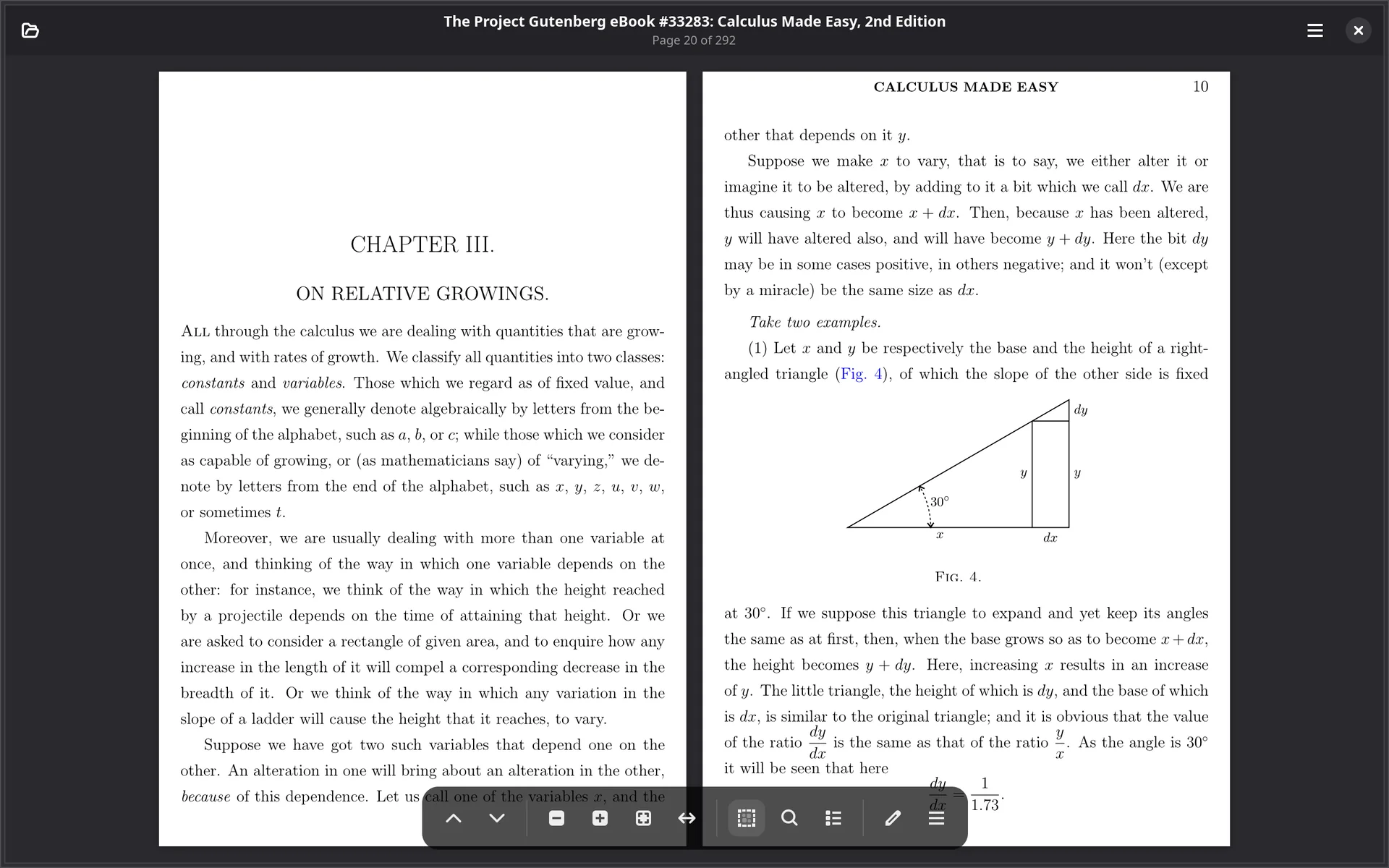
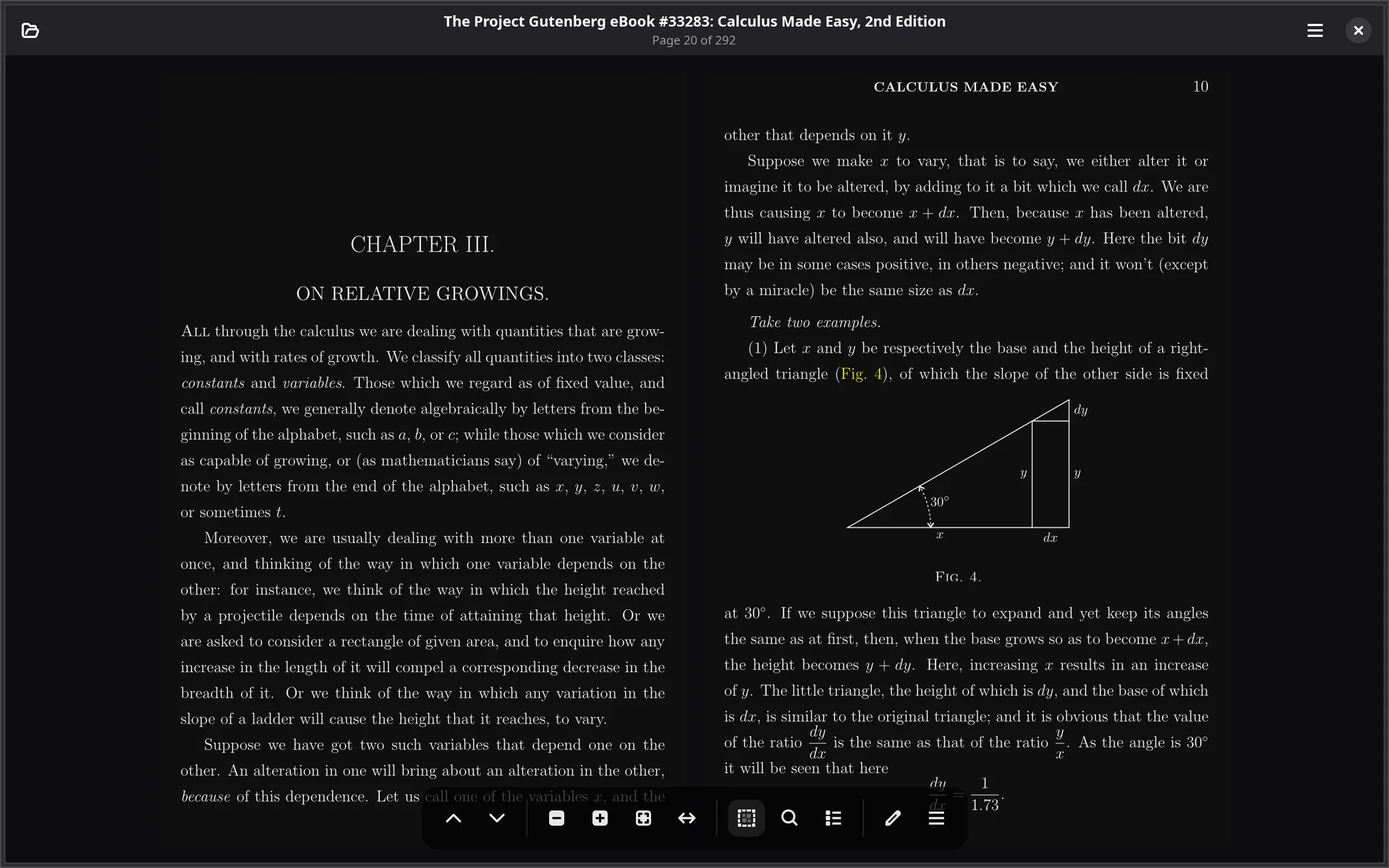
Single page, continuous, or two pages side by side, with t to cycle between them. Fit the page, the width or the height; zoom is anchored where you point and stays sharp at every scale. Dark reading (i) inverts the display without touching the file, so a paper reads at night and still prints the right way round.
| ← → / n p | Previous / next page |
| Space / Page Down | Next screen, rolling onto the next page |
| + - | Zoom in / out |
| 0 / 1 / w | Fit page / actual size / fit width |
| r / Shift+R | Rotate the view right / left |
| t / i | Cycle layout / dark reading |
| Ctrl+F, Ctrl+G | Find, next match |
| F9 | Sidebar: pages, contents and notes |
Everything on this page is free in every tier, forever. Reading is what a licence never has a say over.